How to Remove Silence from Audio Files
How automatic silence removal works, which method to choose (Audacity, FFmpeg, online or desktop) and how to clean up a recording in a few clicks.
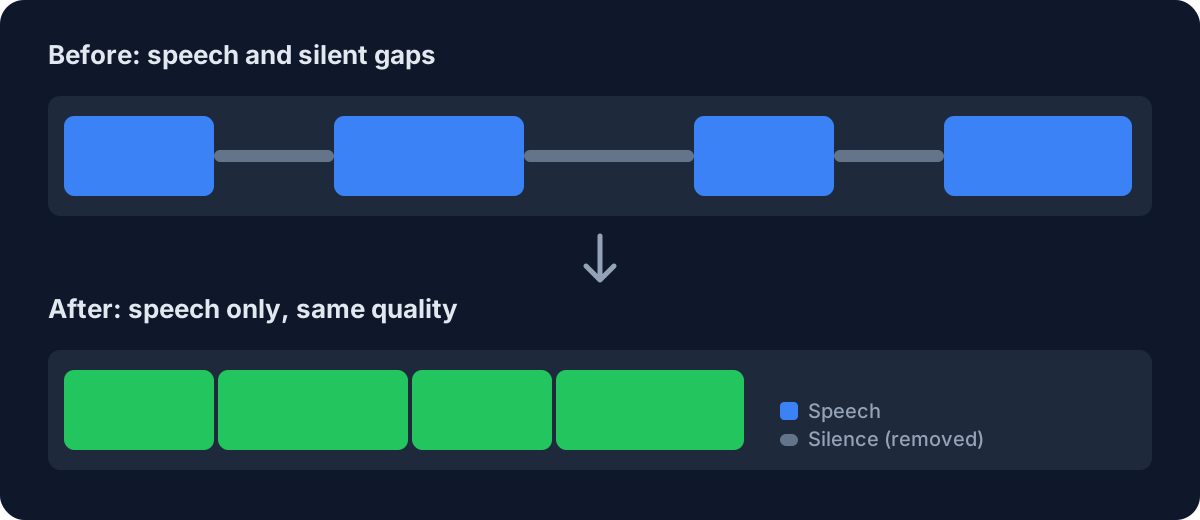
Automatic silence removal detects the parts of a recording that fall below a volume threshold and cuts them out, so you keep the speech and lose the dead air — without re-recording anything or scrubbing the timeline by hand. This article is part of our silence remover guide.
If you edit podcasts, interviews, online courses or voice-overs, you know the routine: long pauses, awkward gaps between sentences, and minutes of nothing before the real conversation starts. Doing it manually means zooming into a waveform and trimming every gap one at a time. A computer can do the same job in seconds, as long as you give it the right settings.
This guide explains what the threshold and the minimum duration really do, compares the main ways to remove silence (manual editing, Audacity, FFmpeg, online tools and desktop apps), and walks through a step-by-step workflow with VoxCut, which processes everything locally on your computer.
Why remove silence from audio?
Tight audio sounds more professional. Cutting unnecessary pauses keeps the energy up, shortens the runtime and makes the content easier to follow — which matters when listeners decide within the first minute whether to stay.
- Podcasts feel punchier: the conversation keeps moving instead of stalling on dead air
- Interviews and call recordings are easier to follow, especially long ones recorded over a video link
- Courses and tutorials respect the learner’s time: no waiting while you read a slide or switch windows
- Videos keep viewers watching: long silent gaps are what makes people drag the progress bar
- Recordings get shorter, so transcribing, reviewing and storing them takes less time
There is a limit, though. Silence is also rhythm: a breath before an important sentence or a short beat after a joke is part of how people listen. The goal is to remove dead air, not to turn the speaker into a speed-reader, which is why the settings explained below matter more than the tool itself.
How does automatic silence detection work?
Every silence remover is built on two parameters. The threshold is how quiet a section has to be, measured in decibels, to count as silence. The minimum duration is how long it has to stay that quiet before it gets cut. A short, quiet gap between two words survives; a three-second stretch of room noise does not.
The right values depend on the recording. A clean studio file tolerates a sensitive threshold, while a noisy room, mic clicks or background chatter need a higher one so the noise is not mistaken for speech. That is why the same settings rarely work on every file, and why a preview matters.
Tools also pick very different defaults. FFmpeg’s silencedetect filter uses a −60 dB noise threshold and a two-second minimum duration unless you change them, and it only reports where the silences are: you still have to cut them yourself. Audacity’s Truncate Silence effect lets you set a threshold between −20 dB and −80 dB and a minimum duration, then either shortens each silence to a fixed length or compresses it proportionally.
Whatever the tool, the principle is the same: detect, preview, then cut. The preview step is what separates a clean edit from one that clips the end of sentences.
Which method should you use to remove silence?
There are five common ways to do it, each with a different trade-off between control, speed and privacy.
- By hand in an audio editor: maximum control, but a long recording can take almost as long to edit as it did to record
- Audacity’s Truncate Silence: free and effective for single files, but you set it up file by file. Our step-by-step Audacity guide covers it in detail
- FFmpeg or Auto-Editor on the command line: powerful and scriptable, but you need to be comfortable with commands. See Auto-Editor alternatives without the command line
- Online tools: nothing to install, but you upload your file and many tools cap the file size. Whether that is acceptable depends on what is in the recording: read is it safe to upload audio to a silence remover?
- A desktop app such as VoxCut: files stay on your computer, detection is automatic, and you preview the result before exporting
For a wider comparison of the tools in this category, see silence removal tools compared, and VoxCut vs Descript for the cloud-based approach.
How do you remove silence from audio with VoxCut?
VoxCut runs 100% locally: your audio never leaves your computer, and there is no account to create. It reads files as a stream instead of loading everything into memory, which is why it copes with multi-hour recordings — a single 72-hour, 5 GB file was processed in under six minutes on consumer hardware.
Here is the workflow, from file to export:
- Step 1 — Drop your file. MP3, WAV, M4A, AAC, FLAC, OGG, Opus and WMA are supported, and so are MP4 and MOV videos: VoxCut trims the audio track and re-syncs the video.
- Step 2 — Pick a sensitivity. Start with Auto, or set the threshold and the minimum silence duration yourself in the advanced settings.
- Step 3 — Check the preview. The before/after waveform shows exactly what will be cut before anything is exported, so nothing is removed blindly.
- Step 4 — Export. You get a clean audio file at the same quality as the source, or, with Pro, an XML/EDL timeline you can open in Premiere Pro or DaVinci Resolve to keep editing.
Trying it costs nothing. The free version has no time limit: files are processed in full up to 10 minutes each, beyond that a partial export is offered instead of a hard block, and every advanced setting can be explored and previewed before you export. On Windows and Linux, Pro is a one-time purchase (€39 at the V2 launch price) with unlimited file size, batch processing and XML/EDL export. On Android, the free version handles files up to 5 minutes, and Pro is a separate lifetime license at €14.99.
How do you get the cleanest result?
- Tune the threshold to the room. A noisy recording needs a higher threshold, a clean studio file can be more sensitive.
- Do not cut every pause. Keep the minimum duration long enough that breaths and short beats between sentences survive.
- Check the preview on the quietest and the noisiest parts of the file, not only the beginning.
- Export to a new file and keep the original, so you can redo the edit with different settings.
- For very long files on Windows, try Turbo mode (Pro): it removes silence in a single pass, roughly twice as fast as the standard export on podcasts and interviews, in exchange for sharper cuts instead of crossfades. It is disabled for video for now.
- For a folder of recordings, use batch processing (Pro) with one consistent sensitivity so every file gets the same treatment.
Different content also calls for slightly different settings. For spoken-word shows, see how to remove silences from a podcast; for video, removing dead air from YouTube videos; for call recordings, cleaning up Zoom and Teams recordings; and for multi-hour files, removing silence from large audio files.
Conclusion: detect, preview, then cut
Removing silence automatically is one of the few audio tasks a computer does better than a person: it is faster, consistent, and repeatable across a whole folder of recordings. What you need to remember fits in four points.
- Two settings drive everything: the threshold and the minimum silence duration
- Always preview before exporting, and keep the original file
- Pick the method that fits your privacy and file-size needs: local tools avoid uploads and size caps
- Cut dead air, not rhythm: leave natural breaths and short beats alone
To try it on your own recording, download VoxCut for free and run your first file in a few clicks. To see how the app has evolved, read about real-time preview and presets in VoxCut 1.3 and Turbo mode in VoxCut 2.0.
Going further: if you have many recordings, read how to remove silence from several files at once; to choose between a browser tool and an app, see VoxCut vs Kapwing and other online silence removers.
Frequently asked questions
Does removing silence reduce audio quality?
No. Silence removal only cuts the quiet segments; the speech that remains is exported at the same quality as the source file. In VoxCut’s standard mode, short crossfades smooth the cut points so the edits are hard to hear.
What threshold should I use to remove silence?
There is no universal value, because it depends on how noisy the recording is. Use a higher threshold for noisy rooms and a more sensitive one for clean studio audio, then check the before/after preview. In VoxCut, Auto mode gives you a starting point that you can fine-tune in the advanced settings.
Can I remove silence from a video file?
Yes. VoxCut supports MP4 and MOV: it detects the silences in the audio track, trims them and re-syncs the video. Turbo mode is disabled for video for now.
Is VoxCut free?
The free version has no time limit: files are processed in full up to 10 minutes each, and a partial export is offered beyond that. Pro is a one-time purchase on Windows and Linux, while Android has its own free tier (files up to 5 minutes) and a separate lifetime Pro license.
Are my files uploaded anywhere?
No. VoxCut processes everything on your own computer, so your recordings never leave it. That makes it a good fit for confidential interviews and client work.
Ready to clean up your audio?
Try VoxCut free and remove silences from your files in one click.
Get VoxCutRelated articles
- How to Remove Silence in Audacity (and a Faster One-Click Alternative)
- How to Remove Silence From Large Audio Files (Multi-Hour Recordings)
- Is It Safe to Upload Your Audio to Remove Silence?
- What's New in VoxCut 1.3: Real-Time Preview, Presets, and a Multilingual Interface
- How to Set the Silence Threshold: Why Previewing the Waveform Beats Blind Auto-Trim